





Step by step instructions to assemble a computer
Including instructions for installing Linux or Windows
Want to assemble your own PC for fun?

Once you know how to choose a PC, you can see how to assemble a PC. We thought some of you may want the fun and learning of assembling a computer by yourself! It's a lot easier than you might think to build a computer! Some of you may just have an interest in knowing how a computer is assembled or in upgrading a part in your own PC. If you do want to assemble a PC by yourself you can order a do-it-yourself (DIY) PC parts kit! For ordering info see our PC assembly project. Of course you can buy a PC from us fully assembled as well.
You may also be interested in seeing our recommended parts for a mainstream computer and our recommended parts for a gaming computer, or our guides on how to choose PC parts.
So here are the step by step instructions on how to assemble a computer! As you complete each step, click it's 'Step to do' button to change it to 'Step done' to mark your progress! Follow the sequence of steps in the order presented, some steps do need to be completed first because access to them can be blocked by other parts if installed in a different order.
Getting the computer case ready
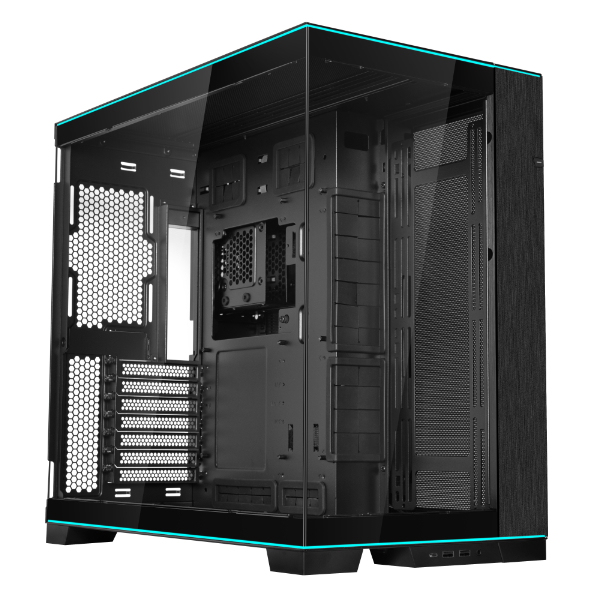
See how to choose a computer case. Lay a cloth on a table big enough to accommodate the case, monitor, keyboard and speakers. Make sure that a power supply wall outlet can be reached. Remove case from packing box, making sure not to scratch case or destroy packing that will be recycled in shipping. Keep all packing materials back in the packing box. Place case on table. Unscrew the screws at the back of case and remove left and right side panels. Remove the front panel usually by pulling under the bottom of the front panel. Remove top DVD drive bay cover from the front of the case.
Remove the instruction manual if any and screws packet from the case. Keep the manual in a folder or envelope. Do the same for all manuals, warranties, paperwork, DVDs, CDs that might come with each component. This folder and its contents should stay with the finished computer. Tip - for this folder you can use the motherboard plastic wrapper when you later unwrap the motherboard.
Keep the screws packet handy for use. When it comes to which screws to use where, because the different screw sizes look very much alike, use the size that fits best! Tip - generally the hard drive screws are a slightly bigger size. The PSU screws are also the same size but sometimes have a bigger head.The DVD screws are a bit smaller. Motherboard screws may be the same as the hard drive or DVD screws.

For the CurrentBuild Dream PC, a gaming PC, in preparation for installing a two slot video card remove from the case's rear the two metal brackets corresponding to the motherboard's PCI express x16 slot and the one next to it by unscrewing them and/or snapping them out. These are usually the two highest slots. If you are installing a single slot video card remove only one metal bracket corresponding to the PCI express x16 slot. Depending on the case you may have to remove a slot cover before removing the metal bracket(s).
If you plan on installing an internal adapter card, say for example a PCI Express wireless adapter card if you want your PC to have the ability to connect to a wireless network in addition to a wired network, remove the metal bracket from the case rear corresponding to the PCI Express x1 slot on your motherboard that is farthest from the PCI express x16 video card slot. You want to give a video card that you install now or add one in the future as much room as possible for air flow and cooling.
Install power supply unit (PSU)
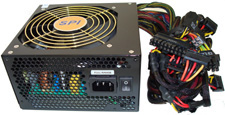
See how to choose a PSU. MAKE SURE VOLTAGE SWITCH ON PSU IS SET TO RIGHT VOLTAGE FOR YOUR COUNTRY! Stand the case. Position power supply unit in its designated section in the case with the power plug socket facing outside the case rear and it's fan side placed facing the inside of the case, you don't want the fan facing into a case ceiling, floor or side panel. Fasten 4 screws that came with the case through rear of case into PSU to hold PSU in place. Tighten all screws with fingertip force only to avoid over tightening and potential damage.
Install DVD drive

See how to choose a DVD CD drive. Remove from the front panel of the case the top external 5.25 inch drive bay cover for the DVD drive if not already done so when getting the computer case ready. Remove any steel grill from the entrance of this bay on the case so you can slide the DVD drive in. Usually there is no grill for this top bay.
Slide DVD drive into this bay from the front of the case, so it rests on the small ledges inside the bay. Slide in so it is level with the front panel, and so the screw holes on each side of the DVD drive line up with the holes on the drive bay of the case. Fasten with 8 screws, 4 on each side.
Install motherboard
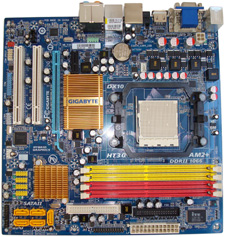
See how to choose a motherboard. DO NOT SCRATCH MOTHERBOARD TO AVOID POTENTIAL DAMAGE TO ETCHINGS ON MOTHERBOARD
Lay case on its side with open side facing up, back of case (rear outputs side) closest to you. Drape all case wires including PSU wires outside case, making sure not to scratch case, to clear the motherboard area. Snap in the metal outputs shield that came with the motherboard into the case rear outputs section as follows. Snap it in from the inside of the case after aligning the three vertical round holes (audio output holes) on the shield to your right when facing the case. Install shield by snapping along edges till small points take hold.
Screw motherboard standoff screws (they look like studs with screws), that came with the case into the case. Mini-itx motherboards usually require 4 standoff screws, micro-atx motherboards require 6 or 8 standoff screws, atx motherboards require 9 standoff screws, check your motherboard to confirm. Screw the standoff screws into the 4, 6, 8 or 9 holes that will match the location of holes on your motherboard when placed on the standoff screws. You might want to hold the motherboard carefully over the case just to visually line up the motherboard holes and the case standoff screw locations.
Tighten the standoff screws into the case with fingertip force only using a 5mm nut driver tool or similar tool. Tip - the case manufacturer often provides a 5mm socket or nut driver tool along with the motherboard standoff screws for this job. Look carefully in the screws packet, this socket can be a very small item, and it's easy to confuse it for a thumb screw. If no tool is provided, because some of these standoff screw locations are close to a case edge, a 5mm socket with a screwdriver that turns the socket is your cheapest tool solution you might just have at home. You can angle the screwdriver a bit if the case edge is in the way.
Test which size screw that came with the case fits into the standoff screws before placing the motherboard on the standoff screws. It's hard to get out the wrong sized screw if the motherboard is in place. Place motherboard on top of the standoff screws while at the same time aligning the motherboard's output connectors with the corresponding holes in the metal output shield on the case. Fasten 6 or 8 of these screws through the motherboard into the standoff screws to fasten motherboard to the case. Make sure the screws do not fall on the motherboard and use a screwdriver that fits the screw well so it won't slip out on the motherboard while tightening. Again, tighten screws with fingertip force only to avoid damage. Also at some point in the future you may want another motherboard and you don't want a nightmare unscrewing overly tightened screws.
Install processor (CPU)
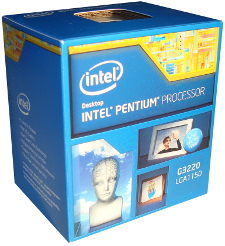
See how to choose a CPU chip. Follow any installation instructions that came with cpu. They are usually as follows. Handle CPU with care touch only by the sides! Don't touch the socket on the motherboard! Note location of a triangle marked on one corner of the CPU plastic cap that covers the CPU socket on the motherboard. A triangle is also marked on the socket's metal bracket under the plastic cap which you can't see at this time. Leave the plastic cap in place for now. Unlock CPU socket lever on the motherboard and turn back the CPU socket plastic cap and metal bracket still together, exposing the CPU socket.
Align gold triangle on CPU with the corner of the CPU socket where the triangle was noted, and also align the two notches on the CPU sides with the CPU socket and place CPU in socket. Return CPU socket metal bracket over CPU making sure front of metal bracket slides under the retention knob on the motherboard, then lock CPU lever to lock CPU in place. This action will remove the CPU plastic cap by snapping it off. Keep it with the PC documentation you might need it in the future.
Install CPU heat sink and CPU fan
Follow any installation instructions that came with CPU heat sink and CPU fan. They are usually as follows. Make sure the thermal paste on the bottom of the CPU heat sink is not wiped off by placing on another surface. Unwind CPU fan wire from around the CPU fan or else it will hit the fan blades during fan operation. Place CPU heat sink and CPU fan unit on the CPU making sure first that the alignment of the heat sink will not block installing the memory sticks, in which case use a different alignment. Second, given the first has no restrictions on alignment, make sure when aligning the heat sink that the CPU fan wire is on the side with easy access to the CPU fan header (a slot or connector) on the motherboard.
Connect the 4 CPU heat sink connectors to the motherboard per instructions from the CPU manual. Usually it's first align and then push in these connectors securely into the 4 holes on the motherboard around the CPU socket, locking it to the motherboard, or there are four screws to be fastened. If there are arrows on the top of each of the 4 CPU heat sink connectors, they should point in the locked position, usually the default position when you first take the CPU heat sink out of its packing box. Check the CPU manual to confirm the direction of these arrows for the locked position.
Connect CPU fan to CPU fan header on motherboard. Align the fan's connector with the tab on the motherboard CPU fan header and insert. Tuck the fan wire away from the CPU fan and the PSU fan. Refer motherboard manual for motherboard diagram to find locations for all headers, jumpers and other connectors on the motherboard. If you don't have a motherboard manual download it from the motherboard manufacturer's website, or you can just look at the motherboard though markings are often coded and small to read.
Install memory

See how to choose memory. Install one memory stick in memory slot 1. Desktop memory slots are now called DIMM slots. If you're installing a second memory stick install it in the memory slot that is the pair to memory slot 1. Memory slot pairs are identified by being the same color. This could be memory slot 2 or memory slot 3 on motherboards with 4 memory slots. On motherboards with 2 memory slots, just insert the second memory stick in memory slot 2.
To install a memory stick, unlock the corner clasps on the DIMM memory slot you will be using on the motherboard. Make sure the notch on the memory stick metal edge aligns with the notch in the memory slot before inserting it. Make sure you insert the memory stick all the way into the slot. This usually causes the corner clasps of the DIMM slot to click in and lock the memory stick in place. If this doesn't happen make sure the memory stick is all the way into the slot and then manually lock in the clasps.
Install hard disk drive (HDD) and/or 2.5 inch or M.2 SSD solid state drive (SSD)

See how to choose a hard drive. Check which empty slot in the 3.5 inch internal drive bay in the case would be best for the hard drive to be inserted based on the least interference to or blocking motherboard connections. Look at the motherboard in relation to these slots and decide. For the Sense PC this would be second from top slot, for the Dream PC this would be the top slot. Stand case, insert the hard drive into this selected bay making sure the label side of the drive faces up, and the hard drive connectors face into the case. Push in the hard drive so the screw holes on each side of the hard drive line up with the holes on the drive bay of the case, and the hard drive rests on the 4 small ledges inside the drive bay. Fasten 4 screws to these holes, 2 on each side, to secure the hard drive to the drive bay.
If you're installing a 2.5 inch solid state drive SSD as a replacement or in addition to a HDD check to see if your case has a 2.5 inch internal drive bay. It may be at the inside floor of the case, requiring four screws to attach the SSD to the inside floor of the case. These screws are the same size as the DVD drive screws. Before installing make sure the SSD connectors face toward the motherboard so you can connect SATA cables from the motherboard and PSU wires to the SSD.
If your case does not have a 2.5 inch internal drive bay for your SSD you will need to use an adapter bracket to install the 2.5 inch SSD drive into the 3.5 inch internal drive bay of the computer case. The adapter bracket is a separate part. It's very simple, just fasten the SSD drive to the bracket with 4 screws and then fasten the bracket to an open case drive bay as described above for a HDD, again making sure the SSD connectors face toward the motherboard and the top of the SSD faces the top of the case. Note also the bracket should be fastened to the case drive bay so the SSD is on top of or resting on the bracket base as opposed to being under or suspended from the bracket base.
If you're installing an M.2 SSD check the location of the hole or half hole at one end of the M.2 SSD and then make sure there is a screw and nut in the corresponding location on the motherboard when the M.2 SSD is inserted in the M.2 slot on the motherboard. If the screw and nut are not in the corresponding location remove the screw and nut from the motherboard and place just the nut in the corresponding location. If it is in the corresponding location just remove the screw. Insert the M.2 SSD at an angle into the M.2 slot on the motherboard, gently press the M.2 SSD down so it lies flat on the motherboard, and secure it to the motherboard with the screw and nut.
Clear CMOS to reset BIOS or UEFI settings
Place case back on its side with motherboard facing up, bottom of case closest to you, and case wires and PSU wires draped outside case. To reset the BIOS or UEFI to its default settings, clear CMOS memory by using the CMOS header on the motherboard. Refer motherboard manual for these instructions. Usually this involves simply moving the jumper from pins 1 and 2 on the CMOS header to pins 2 and 3 for ten seconds and then returning the jumper back to pins 1 and 2 where they stay. If there is no pin 3 just touch the metal part of a screwdriver to pins 1 and 2 for ten seconds (don't scratch motherboard).
Tuck and tie PSU wires
If your PSU has a modular wiring arrangement only install the wire modules you need as you go along with the assembly. If your PSU does not have modular wiring, start by separating the PSU wires you will not be using and tuck and tie these wires behind the motherboard, if the case has that feature, or around the motherboard into empty case areas keeping the drive bays clear as much as possible for future expansion. As you proceed with the steps below connecting the rest of the wires to connectors, do the same for those wires. This keeps the motherboard uncluttered for air flow so it stays cool, and for a neat and organized look. This is more an art than a science.
Connect power to motherboard
Plug in 20 + 4 pin main power connector from the PSU to the main power header on motherboard. The pins shapes match the pin sockets and can only be inserted one way. The clasp on the connector will direct you. Make sure the clasp locks to the header.
Connect power to CPU
Plug in the 4 pin CPU power connector from the PSU to the CPU power header on motherboard. Make sure to connect by matching pin shapes on connector to pin sockets on header. The clasp on the connector will direct you, and make sure the clasp locks to the header. If you use a more powerful PSU this CPU power connector will have 8 pins, no problem just connect 4 of the pins, again the shape of the pins and the clasp will direct you which 4 pins to use and the direction it plugs in. If your motherboard has an 8 pin socket CPU power header then connect all 8 pins from the PSU CPU power connector, again matching pin and socket shapes. Note some mini-itx motherboards with embedded CPUs don't have a CPU power header, check the motherboard manual to make sure.
Connect case front panel wires to motherboard
Connect the following wires from the case to the front panel header (or system panel header) on the motherboard. The case's power button wire, reset button wire, power LED wire and HDD LED wire. If the case has a speaker, connect case's speaker wire to speaker header on motherboard.
From the diagram of the motherboard in the motherboard manual find the location of the front panel header and speaker header. This is where these case wires connect. Each case wire has a pair of connectors at the end, except for the speaker wire which has more, that are inserted over the corresponding pins on these motherboard headers.
Turn to the page in the motherboard manual where you find details on front panel header connections and accordingly connect the case wires. For example, for the case's power button wire the manual will point to two specific pins on the front panel header where this wire connects to. The manual will show one of these pins on the header as 'power button', the other pin will be shown as 'ground'. On the case's power button wire there is a tiny triangle, which is hard to see, marked at the end of one of its two connectors that is the 'power button' or positive connector, the other connector without the triangle is the 'ground' connector. Accordingly connect the power button connector to the power button pin on the header, and the ground connector to the ground pin. Tip - usually the case wires connectors with these triangles signifying a positive charge have a wire color other than white, while the ground wires are white. However different case manufacturers might follow different conventions so check for the triangle to confirm which connector is positive.
Once you understand where a case wire connects to the front panel header by knowing what to look for the rest is easy.
Connect case front panel USB 3 wire to motherboard
Connect case's front panel USB 3 wire from case to a USB 3 header on motherboard. Align the notch on the connector with the notch on the header and insert connector. If your case has only a front panel USB 2 cable connect it to a USB 2 header on the motherboard.
Connect case front panel HD audio wire to motherboard
Connect case's front panel HD audio wire from case to front panel audio header on motherboard. Align the connector accordingly with the missing pin on the header and insert.
Connect case fan to motherboard
Connect case fan to case fan header (or chassis or 'cha_fan1' or 'sys_fan1' header) on motherboard. Your case fan may have a 3 pin or a 4 pin connector, while your case fan header is likely a 4 pin header. The 4th pin can control the fan speed. The other pins are ground, power and monitoring fan speed. Either way, whether 3 pin or 4 pin, make sure the connector aligns with the tab on the header, so you make the right connection.
Connect power to HDD/SSD and DVD
Connect a power rail with SATA connectors from PSU to HDD and/or SSD. Note for an M.2 SSD no PSU connector is required.
Connect a separate power rail with SATA connectors from PSU to DVD.
Note that the inside of SATA PSU connectors have a 'L' shape, so align the connectors accordingly.
Connect SATA cables from motherboard to HDD/SSD and DVD
Connect a SATA cable that came with the motherboard starting from the lowest numbered motherboard SATA 6 Gbps header to HDD and/or SSD. This could be SATA 0 or SATA 1 depending on the motherboard. Note for an M.2 SSD no SATA cable from the motherboard is required.
Connect another SATA cable that came with the motherboard from the next numbered motherboard SATA 6 Gbps header to DVD.
Note that the inside of SATA motherboard connectors have a 'L' shape, so align the connectors accordingly.
Note, if you are connecting two HDD/SSDs connect these drives to the lowest and next numbered SATA connectors and the DVD to the third. This is important where the motherboard has only two SATA 6 Gbps connectors and the rest are SATA 3 Gbps. You want the hard drives to have the faster connection, the DVD is fine with SATA 3 Gbps speed.
Install video card

See how to choose a video card. Adding this section for CurrentBuild Dream PC, a gaming computer and power PC, or the powerful workstation CurrentBuild Dream WS 2, which use a separate video card. Or use these these instructions if you ever want to add a video card to your Sense PC, thereby easily upgrading your PC to a gaming PC!
If not already done so remove from the case's rear the two metal brackets corresponding to the motherboard's first PCI express x16 slot (the slot closest to the CPU). This is for a dual slot video card, for a single slot video card remove only one metal bracket corresponding to the motherboard's PCI express x16 slot. Depending on the case you may have to remove a slot cover before removing the metal bracket(s).
Remove any plastic covers on the video card's metal connectors and output connectors. Move to the open position the corner clasp (usually that's the flat/down position) on the PCI express x16 slot on the motherboard, and insert the video card into the slot being careful that the tips of the two/one metal brackets on the video card do not scratch the motherboard and fit correctly into the case. Once inserted, manually move to the locked position the corner clasp (usually that's the up position) on the PCI express x16 slot, it may automatically do this when the video card is inserted, but check to see it's done. Screw the video card's two/one metal brackets to the case rear to fasten the card. Some cases have a slot cover that goes on over the brackets before you screw the brackets to the case, in which case use this cover as well. Again make sure you don't scratch the motherboard with the video card's metal brackets or other part.
If the video card has a power connector slot(s), connect to this a 6 pin or 8 pin PCI Express power connector from the PSU, matching the slot holes on the video card. More powerful video cards can have two 6 pin or two 8 pin power connectors, in which case connect two connectors. Route this PSU PCI Express cable(s) behind the motherboard if the case has motherboard plate cutouts for cables, otherwise route it around the motherboard behind the main power connector in order to reduce clutter and increase air flow.
Remember after you finish the complete assembly of the PC and it's time to connect your display/monitor, your PC now has a separate video card installed, so make sure to connect your monitor to a VIDEO CARD OUTPUT at the rear of the computer, NOT TO A MOTHERBOARD VIDEO OUTPUT next to the other motherboard connectors which is also at the computer rear.
Install internal adapter card
Adding this in case you want to install an internal adapter card, for example a PCI Express wireless adapter if you want your PC to connect to a wireless network instead of a wired network.
If not already done so remove from the case rear the metal bracket corresponding to the motherboard's PCI Express x1 slot that is farthest from the PCI Express x16 video card slot. As stated earlier you want to give a video card that you install now or add one in the future as much room as possible for cooling. Insert the adapter card into the slot. Screw the adapter card's metal bracket to the case rear to fasten the adapter to the case. Some cases have a metal cover that goes on over the bracket before you screw the bracket to the case, in which case use this cover as well. Attach any antenna provided with a wireless adapter card to the adapter's inputs at the case rear. As usual make sure you don't scratch the motherboard with the adapter card's metal bracket or other part.
Place CurrentBuild Sense PC logo label on case
Place CurrentBuild Sense label sticker at center and top of front panel.
Test connections
Plug in PSU power cord into PSU and to wall outlet and start computer. Use usual precautions when handling electricity! Test to see the following are running - all 3 fans - case, CPU, PSU, (and video card fan(s) if separate video card installed). Test power button (PC comes on and off) and reset button (PC reboots). Test to see all 3 LED lights work - PLED light (power on light that stays on when PC is on), DVD LED light (comes on at start then goes off), HDD LED light (blinks initially).
Put back case left, right and front panels
Screw back case left and right panels with thumb screws. Make sure you get the sides correctly, a case side panel with a window faces the front side of the motherboard giving the components ventilation.
Snap back front panel.
More testing
To test CPU/memory/motherboard/hard drive/DVD/PSU/case/keyboard/mouse/audio - connect the monitor, keyboard, mouse, internet jack and speakers to the computer and install the operating system as follows. If you have installed a video card, make sure to connect your monitor to one of the VIDEO CARD outputs at the PC rear, NOT TO A MOTHERBOARD video output which is next to other motherboard connectors which are also at the PC rear. The order of preference for a monitor connection to the computer is DisplayPort, HDMI, DVI and VGA depending on what ports both your monitor and the PC have.
Installing Linux or Windows 11 from a DVD or USB flash drive
See how to choose the operating system. To install Linux you need a Linux installation ISO image file on a DVD or a USB flash drive. Use this free Linux Live DVD or USB Live flash drive you create next! For Windows you have to buy an installation DVD.
See how you save money on Linux compared to Windows.
Create a free Linux Installation/Live DVD or USB flash drive

Going to make this real simple, pages have been written on this! On another computer just do the following:
- To download the Linux installation ISO image file
- In a Windows PC download and install free BitTorrent, this is a downloading program that makes large downloads fast and verifies the download using torrent files. Or in a Linux PC you can use the free BitTorrent program Transmission. By the way Transmission is included with an installation of Linux Mint!
- Go to the download page for Linux Mint 22 "Wilma" MATE 64 bit ISO file and click the Torrent download to download the torrent seed file, then double click on it and BitTorrent or Transmission should open and you can start the download of the ISO file, or,
- Go to the download page for Ubuntu Desktop 24.04.1 LTS 64 bit ISO file, scroll to the BitTorrent section and click that torrent file to start the download. When prompted use BitTorrent or Transmission to perform the download.
- To create a free Linux Live DVD
- In a Windows PC download and install a free DVD burning software program, there are many just do a search or use any DVD burning software you might already have. Or in a Linux PC you can use the free CD/DVD burning program Brasero. By the way Brasero is included with an installation of Linux Mint!
- Use the DVD burning program to burn the Linux installation ISO image file you just downloaded onto a blank single write DVD or reuse a rewritable DVD.
- Or to create a free Linux Live USB flash drive
- On a Windows PC download and install the program 'Universal USB Installer - Easy as 1 2 3' from pendriveLinux.com. The program download link is on that page and is called 'DOWNLOAD UUI'. Run that program and write the Linux installation ISO image file you just downloaded to a USB flash drive.
- On a Linux Mint PC use the program 'USB Image Writer' that comes included with Linux Mint to write the Linux installation ISO image file you just downloaded to a USB flash drive. That simple. This program needs the ISO file you downloaded to be a hybrid ISO file and recent Ubuntu and Mint distro ISO files are hybrid ISO files.
- On an Ubuntu PC use the program 'Startup Disk Creator' (USB-creator-gtk) to do the same. Other Linux distros have similar tools, just search for 'USB creator' or 'startup disk', you'll find a utility.
- That's it!
If you can't create your own free Linux Live DVD or USB flash drive as described above for any reason, and want us to send you a DVD we can if you're in the USA. Just pay for the cost of shipping, handling and the disk itself. Choose the Linux distro you want from the drop down menu and we'll ship the version we're currently pre-installing on our PCs. If you want a different Linux distro than the options offered, or a 32-bit version for older PCs, or any other customization of the distro let us know in the checkout comment box, we can most likely do it. You can reuse one free Linux Live DVD on as many PCs, desktops and laptops as you want!
Update BIOS or UEFI firmware
The motherboard may or may not have the latest BIOS or UEFI firmware and ME (Intel Management Engine) installed. While it's not necessary to have the latest BIOS or UEFI firmware and ME, it is a good thing to have. Note, some BIOS or UEFI do not do an ME update.
Enter BIOS or UEFI by tapping the delete key immediately on starting the computer. Update the BIOS or UEFI firmware and ME from the Internet flash utility in the BIOS or UEFI itself, if it has this utility.
If there is no Internet flash utility, the BIOS or UEFI probably has a USB flash utility. First on another PC download the latest BIOS or UEFI firmware (with included ME in some cases) from the motherboard manufacturer's website, unzip the file, and then copy the unzipped file(s) to a USB flash drive. Then use the BIOS or UEFI's USB flash utility to update to the new BIOS or UEFI file on the USB flash drive.
DO NOT POWER OFF THE PC, OR REMOVE THE USB FLASH DRIVE if using that method, till the update(s) are complete.
Change BIOS or UEFI settings to prepare for operating system (OS) installation
Enter BIOS or UEFI by tapping the delete key immediately on starting the computer. Note different BIOSes have different menus and titles so use your best judgment on the instructions below.
First confirm from the BIOS or UEFI the components you installed in the PC. If you look around in the BIOS or UEFI, it will list the motherboard, CPU, memory size, hard drive, DVD drive. It will also tell you which motherboard connectors have been used for the hard drive, DVD drive and sometimes the memory sticks. This a good first test that it's all good.
Then make the following changes
- Today most if not all motherboards and some other hardware devices like video cards use UEFI boot mode where UEFI is a software layer between the firmware (BIOS) and the OS. Current versions of Linux and Windows also support UEFI. It's the current standard for booting an OS and has advantages, so if your hardware and OS support it, and as stated almost anything new today will support it, you should use UEFI. However if you have dual or multi-boot operating systems installed or planned to be installed and one of those was installed without UEFI then don't use UEFI. To use UEFI boot mode, in the BIOS under the boot menu or under the Windows menu set the boot mode to UEFI only or disable CSM (CSM or Compatibility Support Module allows for both UEFI and legacy BIOS boot modes). If that option isn't there then in the boot menu of the BIOS, under boot order priority make the first boot device your UEFI CD/DVD drive or UEFI USB flash drive depending on your OS installation media. Note in some new BIOSes you don't see the UEFI prefix listed before a storage device as an option in the boot order devices, that means UEFI boot mode may be automatically selected first anyway for the storage device you select. In some older BIOSes to use UEFI boot mode, in the boot menu of the BIOS or sometimes it's in the Advanced menu or other menu, or it's under a heading like CSM Configuration or CSM Support, in that menu for the boot mode for the Storage Device, Video and other PCI/PCI Express devices select UEFI mode only or simply disable CSM.
- The BIOS or UEFI on some motherboards may also require you to select the operating system. Here select Other OS if installing Linux, however in a few cases you may have to select Windows 11 in order to use UEFI mode even if you're installing Linux. Further, for a Linux installation, and if you want a dual boot system now or in the future, keep 'Secure Boot' disabled.
- You don't need motherboard branding displayed on start-up so disable it in the boot section.
- Under Integrated Graphics Configuration or other similar heading make Primary Graphics Adapter - 'Onboard' or 'Integrated Graphics' or 'IGD' or some similar abbreviation, unless you are installing a separate video card in which case it should be PCI Express Graphics or 'PEG' or a similar abbreviation.
- Make other changes to BIOS or UEFI as desired. Look through each menu and change as desired.
- Before exiting the BIOS or UEFI, insert OS installation DVD in DVD drive or USB flash drive into your USB port, then save BIOS or UEFI settings and exit. You may have to use a USB 2.0 port, instead of a USB 3.0 port, depending on your chipset to ensure a UEFI boot. On restarting the PC, the OS installation will automatically boot up.
Install the operating system
With the computer booting from the OS installation DVD or from the USB flash drive, just follow the simple steps on the monitor to install the operating system. We've listed the instructions for installing Linux next.
Install Linux Mint 22 or Ubuntu Desktop 24.04.1
Sometimes the hardware is so new, particularly the integrated graphics or video card, the Linux OS installation DVD or USB flash drive boots to a blank screen in which case do the following, if it boots normally skip the bullet points below and proceed to the next paragraph:
- Boot the computer from the Linux OS installation DVD or USB flash drive and when you see the grub screen (the Linux boot options screen) highlight the option (usually the first option) to start or install the Linux distro, then press 'e' to edit the boot commands for that option. Insert the word 'nomodeset' after a space after the word 'splash', leave a space after nomodeset, then press F10 which will resume the boot. If that gets you to the Linux distro desktop, it may display in larger resolution that's fine for now, skip the bullet points below and proceed to the next paragraph. If you still have a blank screen try compatibility mode as detailed in the bullet points below.
- Boot the computer from the Linux OS installation DVD or USB flash drive in compatibility mode, not normal mode, by choosing the compatibility mode option from grub which is the Linux boot loader you'll see once it boots.
- In case you don't have a completely blank SSD or hard drive where you'll be installing Linux, you'll need to wipe it to clean status. Save any data files you might need on a flash drive before you do the following for they'll be deleted. Once the Linux OS installation DVD or USB flash drive is booted in compatibility mode, use the program gparted from the main menu (just type gparted in the search box in the main menu to find it) to delete all partitions on the SSD or hard drive. You may have to first deactivate the partitions in order to delete them, you can do that from within that program gparted. Then create a new GPT table from that same program gparted, that'll really wipe the SSD or hard drive of all previous stuff. All those commands to do the above are menu items in gparted, if you look for them you'll find them. Then reboot back into Linux compatibility mode from the Linux OS installation DVD or USB flash drive, it's a necessary step to reboot with now a clean SSD or hard drive in the computer.
- Then while in compatibility mode install Linux from the Linux OS installation DVD or USB flash drive using the instructions in the following paragraph. Then remove the Linux OS installation DVD or USB flash drive and reboot and start Linux from the SSD or hard drive this time in recovery mode, for the new graphics driver may still not be installed and you may still get a blank screen on boot. Do this by going into advanced options in grub, boot in recovery mode, and say ok to resume normal boot, you'll see all those options when you start Linux in recovery mode.
- Once Linux is loaded into recovery mode from the SSD or hard drive, update the kernel to the latest Linux kernel. In Linux Mint it's one of the menu items in update manager to update the kernel. In other Linux distros, do a search on how to update the kernel for that distro.
- Then reboot again in recovery mode. Then go to the program additional drivers, and install any recommended graphics proprietary driver you might see there. Then reboot in normal mode and install all other updates from update manager and you should be good.
Here are the step by step instructions for installing Linux Mint 22 or Ubuntu Desktop 24.04.1, once the operating system installation DVD or USB flash drive boots up. They have many common steps, after all Mint is based on Ubuntu, so combining the instructions below, with differences noted.
- On the boot up screen, for Linux Mint select 'Start Linux Mint 22 MATE 64-bit, for Ubuntu select 'Install Ubuntu'.
- For Linux Mint, double click the DVD icon on the desktop 'Install Linux Mint'.
- Choose your language.
- Confirm your computer has free hard drive space and is connected to the Internet. The Internet will be automatically connected as long as your Internet provider does not require a username and password and the Internet jack is connected to the computer. If your Internet provider requires a username and password to connect you will have to configure the network. For example for Linux Mint, if you use a DSL Internet connection which requires a username and password, right click on the network icon in the right lower corner of the screen, click edit connections, and set up a DSL connection with your username and password. Similarly for Ubuntu. Make sure you are connected before you proceed.
- For Ubuntu select 'Download updates while installing' and next for both Ubuntu and Linux Mint select 'Install third party software'.
- Because this is an installation on a new computer with a blank disk (hard
drive or SSD), select 'Erase disk and install Linux Mint' or the same for Ubuntu. Heed the warning message that this will delete any files on the disk, it will do that, so don't choose this option for a disk that's not blank. Also, if you have more than one hard drive or SSD make sure you select the blank hard drive or SSD as the one where where you want to install Linux. Leave the other hard drives and SSDs alone. If you have other operating systems on other hard drives or SSDs, the Linux installer should recognize them and give you the option to boot to those operating systems at every boot time after the Linux installation is complete. If you don't have a blank disk, select 'Something else' or 'Manual partitioning'. Here's an example on this same page of manual partitioning which you can use as a guide - manual partitioning a hard drive for a dual boot PC.
- You may not need full disk encryption (FDE) so keep that box unchecked if that is the case. However this is a highly useful feature if you will have sensitive files on your PC you want protected in case of theft or loss of your PC, or if you're working in an industry that requires full disk encryption like finance or health care as possible examples. If you check this box, your hard drive will be encrypted and you'll have an additional password required to start the OS. If you're planning a dual boot PC and want encryption don't select this box, that will require manual encryption of the partitions.
- Check the box for LVM (Logical Volume Manager), it'll help you in the future if you need to add hard drives and want to keep the same folders that stretch over more than one hard drive! It's a pretty cool concept. LVM also allows for easier and more flexible resizing of partitions in the future if you want to install another OS and want a dual boot or multi-boot PC into different operating systems. To do this you'll need to learn how to work with LVM, but that's for another day, just know your PC will be ready for it.
- Start typing in your city and choose it from the drop down menu. There are many cities with the same name!
- Choose your keyboard layout.
- Gave your first name and last name in 'Your name', and other fields fill
up automatically, keep the default or change them if you want to, and enter
a password. Write down your password somewhere safe, if you forget it you can't get in!
- It's recommended to login with a password for security, however you could select 'login automatically' for a faster start-up.
- Don't check 'Encrypt my home folder' unless you want another layer of security. Also don't check 'Encrypt my home folder' if you selected full disk encryption earlier, you don't need both.
- That's it, you will see soon see a message 'Installation Complete'. Click 'Restart Now'. Let the computer shut down. The DVD drive may open take out the OS installation DVD or remove the USB flash drive and press enter. The PC will restart automatically, or if you still see a message on your monitor that doesn't change, or you see a blank screen, wait a couple minutes then just power off and power back on. The OS has been installed!
Install Windows 11
After completing the BIOS settings above in preparation for Windows installation, with the Windows installation DVD in the DVD drive, shut down the PC till it's off completely, then start it up again, and make sure you press any key when the screen says press any key to boot from CD, this makes sure the Windows installation DVD starts in UEFI mode if that's how it was set up in the BIOS. Complete the steps on the monitor once the PC boots from the Windows installation DVD.
Enter the product key code during installation from the Certificate of Authentication sticker, then place this sticker on the case rear.
Reset boot order in BIOS or UEFI after installing OS
After installation of the operating system is complete, remove the OS installation DVD from the DVD drive or remove the USB flash drive, restart PC, enter BIOS or UEFI and change the boot order back to your UEFI hard drive first and your UEFI CD/DVD drive second. Or without UEFI in the same order mentioned here if you did not use UEFI boot mode during installation. Some OS's will automatically make this boot order change if UEFI boot mode was used during installation as you might see.
For a Linux OS installation you may notice the time in the BIOS or UEFI has changed as well, leave it like that, the time in the OS is right based on the location you entered during the OS installation.
Save and exit BIOS or UEFI and check out your new OS now installed on your hard drive! Wow!
For Linux - Updates
In Linux go to Menu - Administration - Update Manager or equivalent to download and install all improvements, security fixes and software patches for both the OS and the software packages that come pre-installed with the OS.
For Linux - Install Drivers
Typically all needed open source drivers for the hardware in the PC are automatically installed during the installation of Linux itself, so you don't need to install drivers from the DVD that comes with the motherboard, and those are typically drivers for Windows not Linux anyway.
However in some cases, you may need a proprietary driver installed for a hardware device to work or you may want it for better performance or more features. For example, a proprietary video driver or WiFi driver in some cases. Usually all that's needed is to go to Menu - Administration - Driver Manager or Additional Drivers and see what proprietary drivers have been identified for the hardware present, and they can simply be installed through Driver Manager with a couple of clicks.
For the Dream PC, which has an advanced video card you want to take full advantage of all its features. In Driver Manager you can change from the already installed open source video driver to the latest proprietary NVIDIA driver-updates if you have an NVIDIA video card installed, or to the proprietary AMD video driver, fglrx-updates, if you have an AMD video card installed. The 'updates' means that you'll get driver updates as they become available. You don't need to uninstall the open source video driver.
For the Sense PC, the open source video driver that is already installed is fine and no change is required.
Install a proprietary WiFi driver, if using a WiFi adapter, the same way if no open source driver for the WiFi adapter was installed during installation of the OS.
For Windows 11 - Updates
In Windows, use Windows Updates to download and install all updates and security fixes for the OS.
For Windows 11 - Install drivers
In Windows, insert the motherboard CD/DVD that came with the motherboard into the DVD drive to install the drivers below. Compare these drivers on the DVD with the ones on the motherboard manufacturer's website support page for that motherboard and only install the most recent driver in each case. If you're using the motherboard's website, download the driver installation zip file to a new folder you create on the hard drive called 'driver-install-files' or a similar name. Double click on each installation zip file to extract files and then click the application file called setup or install or something similar. If during installation you get a message that a newer version of any driver is already installed don't install the older version.
- Chipset/Display driver
- HD Audio driver
- LAN driver
- Any other Intel drivers for Intel platform motherboards
- Any other AMD drivers for AMD platform motherboards
For Windows 11 - Install utilities and update antivirus software
Again from the motherboard CD or website install any utilities you might like. This is optional and some useless utilities should be avoided.
In Windows 11, make sure Windows Defender is on from the Settings menu, it comes included with the OS as your anti-virus and and spyware protection, or install a third party one.
For Windows 11 - Install software programs
Download and install latest version of Firefox and/or Google Chrome, and Adobe Reader from their respective websites.
Overclocking!
The Dream PC CPU has an unlocked multiplier which means overclocking is a breeze. Overclocking can turn a fast CPU into an extreme CPU for no additional cost! Go into the BIOS or UEFI, go to the OC or Overclock menu, change CPU Ratio to 40, save and exit the BIOS or UEFI. Guess what you've just got a 4.0 GHz CPU! Overclocking this way without changing CPU voltages is an easy way to go, how easy was that. You miss out on some additional overclocking potential by not increasing the CPU voltage but it keeps the CPU running less hot when you keep the CPU at stock voltage.
If you find the system is unstable at an overclocked frequency, that is the PC crashes, keep reducing the CPU Ratio by one or more till the PC is stable again. On the other hand if the PC is stable for a while and you want to push it, you could increase the CPU Ratio by one and see if it's stable and then try again. Don't go beyond 42 or at an extreme 44. If your computer ever gets to the point it doesn't boot reset CMOS when the PC is off to return it to the BIOS or UEFI default values.
If you're using a different CPU and want to overclock, if it has an unlocked multiplier and a motherboard BIOS or UEFI which gives you the ability to overclock, you'll have to figure out how much you can overclock by trial and error as above. It's safer to always start low, just one above the default CPU Ratio and work up from there till you hit the overclocking maximum and then back off from there a bit for stability. If the CPU doesn't have an unlocked multiplier but you have a motherboard BIOS or UEFI with overclocking ability it can still be potentially overclocked, by changing the external clock speed, in a similar trial and error method. Again remember to change the external clock in small increments.
Overclocking is worth it but should be done carefully to minimize any risk of damage to the CPU. Overclocking removes warranties on the CPU and potentially the motherboard.
Even more testing
Play music CD and DVD movie to test (Windows 11 doesn't have an included DVD player at product launch, Linux has more than one). Insert flash drive or other USB device into USB port(s) to test. Done!
Pack
Wipe case with a paper towel. Place case in plastic bag and encase sides with foam packing recycled from original packing. Then place in original box along with the following parts, CDs/DVDs, documents and manuals and seal the box with shipping tape.
CurrentBuild Sense PC

With Linux or Windows 11 Installed
Parts
- Power supply cord
- Extra screws
- Extra 5.25 drive bay case cover
- CPU socket plastic cap
Documents, manuals and drivers
- CPU Processor documentation
- Memory documentation
- Motherboard drivers CD/DVD
- Motherboard manual
- Case documentation
- Video card drivers CD if installed
- Video card drivers documentation if installed
- PSU documentation
- SSD software CD/DVD if any
- SSD documentation if any
- Any other documentation
Linux DVD or Microsoft Windows 11 DVD
- Linux DVD or Windows 11 DVD
- Linux password
Packaging from component manufacturers
Ship
Your computer is ready! See told you it was easy! Let us know what you think. Thanks.